

This article explains how to create a smooth scrolling function. Smooth scrolling allows a user to click a link that targets a different section within the same page, causing the browser to smoothly animate the scroll to that target destination.
While scrolling functionality is ubiquitous on the web and seems straightforward, it can be surprisingly challenging for beginners to implement. This article will guide you through the implementation process.
Development Environment
BACKEND: Django
FRONTEND: Django templates and jQuery
Django and JavaScript Packages Used
We'll only use jQuery for this implementation; no special Django packages are required.
While numerous vanilla JavaScript and jQuery-based Table of Contents modules exist online, I found some overly complicated to set up, and others didn't work well in this site's environment. Therefore, creating a custom Table of Contents proved more efficient.
Project structure
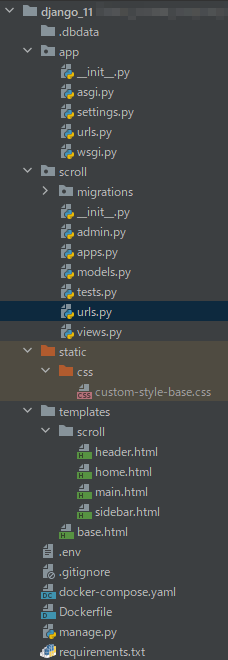
Project File Structure:
The project name is app and the application name is scroll. Since I use Docker for most of my development, the following file structure includes Docker-related files and a .dbdata folder.
Page design
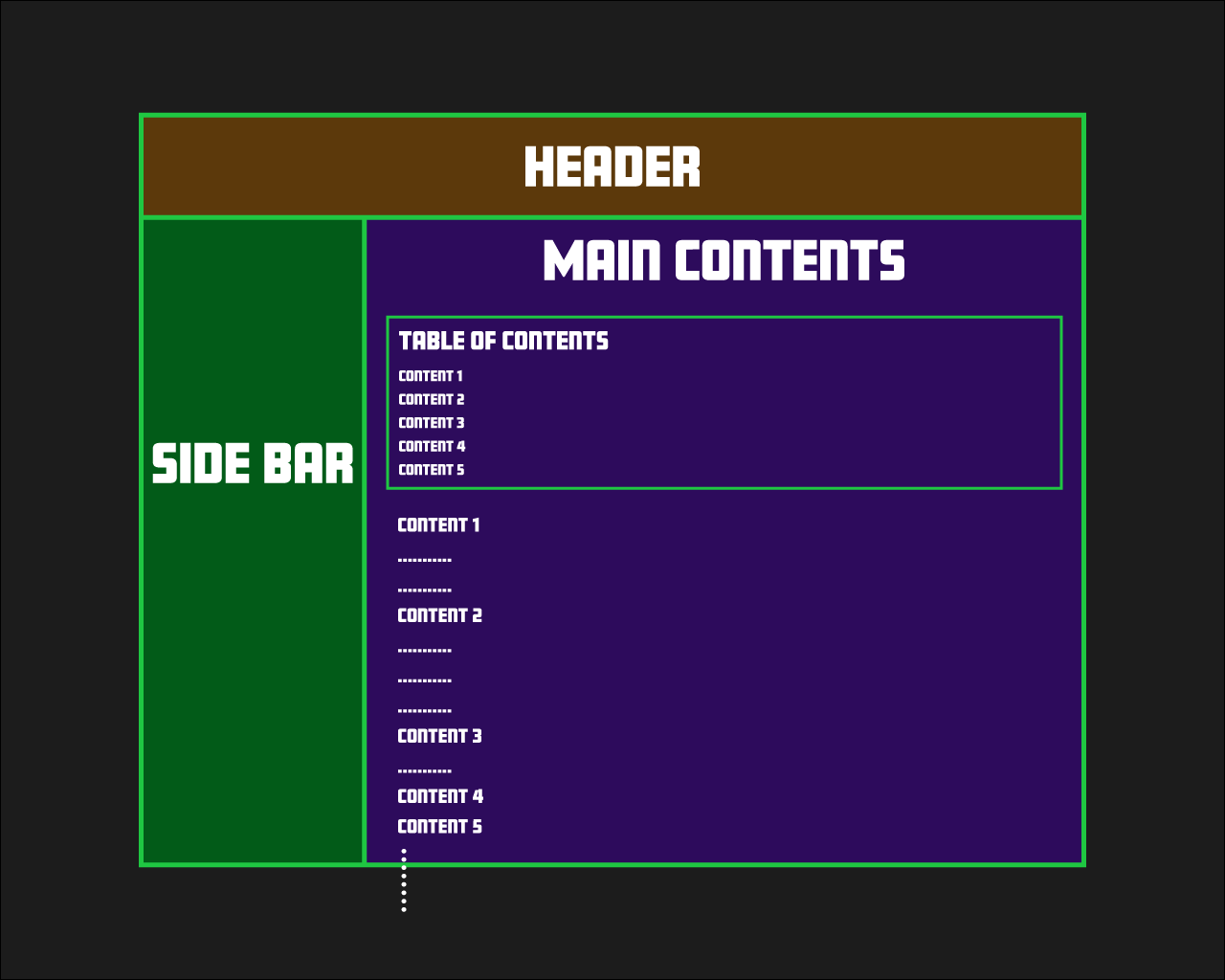
Here's the basic template structure for this site:
In this post, we'll be creating a page with the following design:
Clicking on a chapter title in the Table of Contents will smoothly scroll the page to the corresponding content section.
Development Process
- Basic Django setup
- Write the code
- Add dummy content to the .container
- Build the Table of Contents
- Implement the scroll function
1. Basic Django setup
This article assumes that you already have a basic setup of Django. If you need help setting up Django with Docker, please refer to the article "Basic setup for running Django with Docker".
2. Writing the codes
Let's create a basic website by following these steps:
- Configure the necessary settings in the settings.py file within the project folder.
- Create a urls.py file in the project folder.
- Create a urls.py file in the application folder.
- Create the views.py file.
- Create the website template.
- Create the CSS for the template.
I used templateView for the view, which is the simplest option.
a. settings.py
...

TEMPLATES = [
    {
        'BACKEND': 'django.template.backends.django.DjangoTemplates',
        'DIRS': [BASE_DIR / 'templates'],
        'APP_DIRS': True,
        'OPTIONS': {
            'context_processors': [
                'django.template.context_processors.debug',
                'django.template.context_processors.request',
                'django.contrib.auth.context_processors.auth',
                'django.contrib.messages.context_processors.messages',
            ],
        },
    },
]

STATIC_URL = '/static/'

STATICFILES_DIRS = [
    os.path.join(BASE_DIR, "static"),
]

...
b. urls.py in project
from django.contrib import admin
from django.urls import path,include

urlpatterns = [
    path('admin/', admin.site.urls),
    path('', include('scroll.urls', namespace='scroll')),
]
c. urls.py in app
from django.urls import path, include
from scroll import views

app_name = 'scroll'

urlpatterns = [
    path('', views.HomeView.as_view(), name='home'),
]
d. views.py
from django.views.generic import TemplateView

class HomeView(TemplateView):
    template_name = "scroll/home.html"
e. Templatebase.html
{% load static %}
<!doctype html>
<html lang="en">
    <head>
        <meta charset="UTF-8">
        <meta name="viewport"
              content="width=device-width, user-scalable=no, initial-scale=1.0, maximum-scale=1.0, minimum-scale=1.0">
        <meta http-equiv="X-UA-Compatible" content="ie=edge">
        <link rel="stylesheet" href="{% static 'css/custom-style-base.css' %}">
        <title>Document</title>
    </head>
    <body>
        <section class="container">

            {% block content %}
            {% endblock %}

        </section>
        <script src="https://code.jquery.com/jquery-3.6.0.min.js" integrity="sha256-/xUj+3OJU5yExlq6GSYGSHk7tPXikynS7ogEvDej/m4=" crossorigin="anonymous"></script>
    </body>
</html>
home.html
{% extends "base.html" %}

{% block content %}

        {% include "scroll/header.html" %}

        {% include "scroll/sidebar.html" %}

        {% include "scroll/main.html" %}

{% endblock %}
header.html
<header class="header">
    <section>Header</section>
</header>
main.html
<section class="main">
    <div class="main__text">
        <div class="content">
        </div>
    </div>
</section>
f. CSS custom-style-base.css
*{
    padding:0;
    margin:0;
    box-sizing:border-box;
}

.grid{
    position: relative;
    width: 100vw;
    min-height: 100vh;
    overflow: auto;

    display: grid;
    grid-template-columns: auto 1fr;
    grid-template-rows:  auto 1fr;
    grid-template-areas:
      'header header'
      'sidenav main'
}

.header {
    grid-area: header;
    position: fixed;
    top: 0;
    width: 100%;
    height: 5rem;
    z-index: 100;
    background-color:#5C390B;
}

.sidenav{
    grid-area: sidenav;
    position: fixed;
    top: 5rem;
    left:0;
    width: 20rem;
    height: calc(100% - 5rem);
    background-color:#025B18;
}

.main{
    grid-area: main;
    position: absolute;
    top: 5rem;
    left: 20rem;
    right: 0;
    width: calc(100% - 20rem);
    height: auto;
    transition: all 0.3s;
    background-color: #e4d1ff;
}

.content{
   margin: 3rem 0;
}

.content_text{
    margin-bottom: 3rem;
    font-size: 2rem;
}
3. Create dummy content in .container
To test the scroll function, create some dummy content. The structure of this dummy content should follow these guidelines:
- Ensure that the
H2andptags are paired. - Ensure the
ptag contains enough text so there's adequate spacing betweenH2headings.
This site is useful for getting dummy content.
main.html
<section class="main">
    <div class="main__text">
        <div class="content">
             <h2 id="chapter1" class="js-toc-content">list 1</h2>
                <p class="content_text">Lorem Ipsum is ...</p>
            <h2 id="chapter2" class="js-toc-content">list 2</h2>
                <p class="content_text">Lorem Ipsum is ...</p>
            <h2 id="chapter3" class="js-toc-content">list 3</h2>
                <p class="content_text">Lorem Ipsum is ...</p>
            <h2 id="chapter4" class="js-toc-content">list 4</h2>
                <p class="content_text">Lorem Ipsum is ...</p>
            <h2 id="chapter5" class="js-toc-content">list 5</h2>
                <p class="content_text">Lorem Ipsum is ...</p>
            <h2 id="chapter6" class="js-toc-content">list 6</h2>
                <p class="content_text">Lorem Ipsum is ...</p>
        </div>
    </div>
</section>
4. Create a Table Of Contents
Insert a Table of Contents at the top of the content you created in step 3. With only about 10 items, creating them manually is straightforward. In this case, we'll assume roughly ten topics. Here's the Table of Contents code structure:
main.html
<section class="main">
    <div class="main__text">
        <div class="toc">
            <p>Table of content</p>
            <h2 class="js-toc"><a class="toc_click" href="#chapter1">list 1</a></h2>
            <h2 class="js-toc"><a class="toc_click" href="#chapter2">list 2</a></h2>
            <h2 class="js-toc"><a class="toc_click" href="#chapter3">list 3</a></h2>
            <h2 class="js-toc"><a class="toc_click" href="#chapter4">list 4</a></h2>
            <h2 class="js-toc"><a class="toc_click" href="#chapter5">list 5</a></h2>
            <h2 class="js-toc"><a class="toc_click" href="#chapter6">list 6</a></h2>
        </div>
        <div class="content">
             <h2 id="chapter1" class="js-toc-content">list 1</h2>
                <p class="content_text">Lorem Ipsum is ...</p>
            <h2 id="chapter2" class="js-toc-content">list 2</h2>
                <p class="content_text">Lorem Ipsum is ...</p>
            <h2 id="chapter3" class="js-toc-content">list 3</h2>
                <p class="content_text">Lorem Ipsum is ...</p>
            <h2 id="chapter4" class="js-toc-content">list 4</h2>
                <p class="content_text">Lorem Ipsum is ...</p>
            <h2 id="chapter5" class="js-toc-content">list 5</h2>
                <p class="content_text">Lorem Ipsum is ...</p>
            <h2 id="chapter6" class="js-toc-content">list 6</h2>
                <p class="content_text">Lorem Ipsum is ...</p>
        </div>
    </div>
</section>
5. Implementing the Scroll Function
Now that we have prepared the necessary code, it's time to implement a function that scrolls to the desired topic when a Table of Contents item is clicked.
Add the following code under the base.html you wrote former.
base.html
{% load static %}
<!doctype html>
<html lang="en">
    ...
</html>

<script>
    $(function(){
        $(".toc_click").click(function() {

            const adjust = 0;
            const speed = 400;

            const href= $(this).attr("href");
            const href_id = href.replace("#", "")
            const element = document.getElementById(href_id);

            const position = element.offsetTop + adjust;
            $(".container").animate({scrollTop : position}, speed, "swing");

             return false;

         });
     });
</script>
Key points of this JS code
This JavaScript code first gets the href attribute (ID of the link destination) that the user clicked on. It then measures the distance between the top of the main part and the link destination, and scrolls the measured distance using the Animate method.
Two key points to remember:
- 1. When scrolling, you need to measure the distance from the top of the scrollable element to the target destination. In this case, the element to be scrolled is `.container`, not the window or body tag.
- 2. The Animate method starts from `.container`, not HTML or body.
Since the header is fixed to the top, measuring scroll distance from the window or body won't work correctly. Instead, measure from the .container element.
The following code is especially important:
$(".container").animate({scrollTop : position}, speed, "swing");
Here's what each part does:
- - `$(".container")`: Uses the jQuery selector to select elements with class `.container`.
- - `animate()`: A jQuery method that applies an animation effect to the selected element.
- - `{scrollTop : position}`: Specifies the CSS property to animate and the final value. This example modifies the scroll position (`scrollTop`) and moves it to the value specified by the variable called `position`.
- - `speed`: Specifies the animation speed in milliseconds. For example, 1000 will complete the animation in 1 second.
- - `"swing"`: Specifies the animation easing type. `"swing"` is jQuery's default easing type, which accelerates and decelerates at the beginning and end of the animation. Another option is `"linear"`, which means the animation progresses at a constant speed.
This code moves the scroll position of the .container element to position with an animation effect, the speed of the animation will be specified by speed, and the easing type will be "swing".
That's it!
If you're looking to add a table of contents with smooth scrolling to your Django project, I hope this guide helps!