

Hello everyone! (`・ω・´)ゞ Today, I'll show you the easiest way to set up a Django development environment using Docker. Many technical blog posts about Dockerizing Django that you find online aren't specifically tailored for development and often include configurations that are overkill for a development setup.
For instance, during the development phase, containerizing only Django and the database is sufficient; you don't need a separate web server container like Nginx. This minimal configuration allows for a quick setup so you can focus on writing code.
This article summarizes a simple development environment setup with Docker.
We'll be creating just three things: a Dockerfile, a docker-compose.yaml file, and a very simple Django application. Let's begin!
Note:
I'm using PyCharm, but the basic setup is almost the same regardless of which IDE you're using (VS Code, etc.).
1. Create a Django project
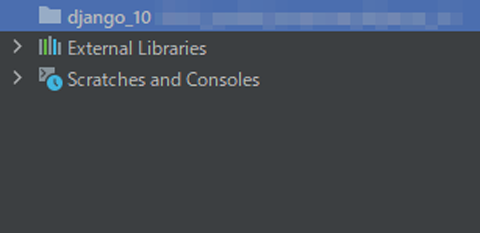
First, create a new folder. I've named mine django_10, but you can choose any name you like. This folder should be empty at this point. The attached image shows an example in PyCharm. You might not see External Libraries and Scratches and Consoles if you're using a different IDE like VS Code. These are irrelevant to our project, so you can safely ignore them.
Next, create a new Django project inside the empty folder you just created. Assuming you already have Django installed locally via pip (Python's package installer), run the command in the code block to the right (below on mobile):
django-admin startproject blog .
The word `blog` after `startproject` is entirely arbitrary.
You can use any name you prefer; this will become your project's name.
The crucial part here is the dot (.) after the project name. Without it, the project folder structure won't be created correctly.
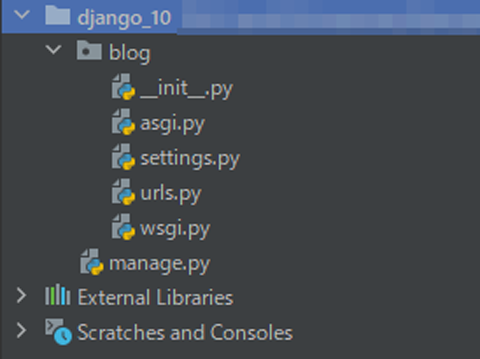
If the command succeeds, your project directory should now look like the structure shown in the screenshot (on wide screens it may appear beside this text; on mobile it will appear below):
2. Create Dockerfile and docker-compose.yaml files
The next step is to create a Dockerfileand a docker-compose.yaml file.
Below are the contents of these files.
Explaining every line here would take too long, so I'll highlight the key aspects relevant to Django project setup:
- The database service name within the
docker-compose.yamlfile is crucial. This name will be used as the database hostname in yoursettings.pyfile. Within Docker Compose, services communicate with each other using their service names on the same network. Therefore, theHOSTvalue in yourDATABASESsetting insettings.pyshould bedb. - For the ports configuration under the db service, use different port numbers on the left and right sides. The right side can remain the PostgreSQL default
port: 5432. The left side should be a different port. This is because if PostgreSQL is already running on your host machine, port5432will already be in use. Using a different port (e.g.,55432) avoids conflicts. Even if PostgreSQL isn't actively running on your host, another process might be using that port without your knowledge. Therefore, using different ports is a safer practice. - Add
env_fileto both backend and db services. Loading the.envfile within the Docker environment simplifies environment variable management. We'll discuss the.envfile later, but it will be placed in the project's root directory. healthcheckensures that a service is running correctly. Combined with depends_on, it prevents the backend service from starting until the db service is healthy. Without healthcheck, timing differences in container startup could lead to errors.container_nameis unnecessary in this Docker configuration. Omitting it allows Docker Compose to automatically generate unique container names, preventing conflicts. This is especially helpful when running multiple projects or multiple instances simultaneously.
Dockerfile
FROM python:3.9
ENV PYTHONUNBUFFERED 1
WORKDIR /blog #1
COPY requirements.txt /blog/requirements.txt

RUN pip install -r requirements.txt

COPY . /blog

CMD python manage.py runserver 0.0.0.0:8000
docker-compose.yaml
version: "3.9"
services:
  backend:
    build: .
    volumes:
      - .:/app
    ports:
      - "8002:8002"
    depends_on:
      db:
        condition: service_healthy
    env_file:
      - .env

  db:
    image: postgres
    restart: always
    volumes:
      - dbdata:/var/lib/postgresql/data
    env_file:
      - .env
    healthcheck:
      test: ["CMD-SHELL", "pg_isready -U $POSTGRES_USER"]
      interval: 5s
      timeout: 10s
      retries: 5
    ports:
      - "55432:5432"

volumes:
  dbdata:
3. Create a requirements.txt file
Next, create a requirements.txt file.
Because we're using PostgreSQL, we need to include the database adapter. We'll also add django-environ to manage environment variables effectively.
requirements.txt
django
psycopg2-binary
django-environ
4. Place environment variables in the settings.py file
Now, let's modify settings.py as accompanying code.
The changes include the top part of the page and the DATABASES section.
The five lines at the top of the file, starting with env=, are the main changes here. These lines load the .env file and store values like SECRET_KEY and DEBUG_VALUE as environment variables.
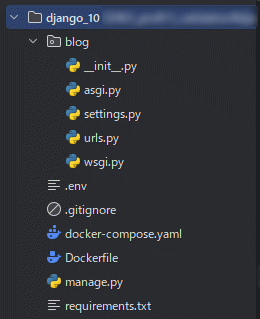
As mentioned earlier, make sure to place the .env file in your project's root folder.
DEBUG setting
For DEBUG setting, the configuration is as follows.
DEBUG = os.getenv('DEBUG_VALUE') == 'TRUE'
The above expression means that if the value of DEBUG_VALUE in the .env file is TRUE, then DEBUG_VALUE and the right-hand side of the equivalence operator will match, resulting in the whole expression evaluating to TRUE.
Conversely, if DEBUG_VALUE is FALSE, then the entire expression will evaluate to FALSE because it does not match the right-hand side of the equivalence operator.
DATABASE setting
The database configuration has been significantly altered from the default SQLite setup.
All database settings are now retrieved from environment variables. Pay close attention to the HOST field in particular.
As mentioned previously, the HOST value must match the database service name specified in your docker-compose.yaml file.
Therefore, you need to set DB_HOST to db in your .env file. I wasted a lot of time stumbling over this issue when I first started developing applications with Docker, so I want to highlight it to save you the same trouble.
settings.py
from pathlib import Path
import environ
import os

# ↓↓↓↓↓ The part in between has changed. ↓↓↓↓↓
env = environ.Env()
BASE_DIR = Path(__file__).resolve().parent.parent
environ.Env.read_env(os.path.join(BASE_DIR, '.env'))

SECRET_KEY = os.getenv('SECRET_KEY')

DEBUG = os.getenv('DEBUG_VALUE') == 'TRUE'
# ↑↑↑↑↑ The part in between has changed. ↑↑↑↑↑

ALLOWED_HOSTS = []

# Application definition

INSTALLED_APPS = [
    'django.contrib.admin',
    'django.contrib.auth',
    'django.contrib.contenttypes',
    'django.contrib.sessions',
    'django.contrib.messages',
    'django.contrib.staticfiles',
]

MIDDLEWARE = [
    'django.middleware.security.SecurityMiddleware',
    'django.contrib.sessions.middleware.SessionMiddleware',
    'django.middleware.common.CommonMiddleware',
    'django.middleware.csrf.CsrfViewMiddleware',
    'django.contrib.auth.middleware.AuthenticationMiddleware',
    'django.contrib.messages.middleware.MessageMiddleware',
    'django.middleware.clickjacking.XFrameOptionsMiddleware',
]

ROOT_URLCONF = 'blog.urls'

TEMPLATES = [
    {
        'BACKEND': 'django.template.backends.django.DjangoTemplates',
        'DIRS': [BASE_DIR / 'templates'],
        'APP_DIRS': True,
        'OPTIONS': {
            'context_processors': [
                'django.template.context_processors.debug',
                'django.template.context_processors.request',
                'django.contrib.auth.context_processors.auth',
                'django.contrib.messages.context_processors.messages',
            ],
        },
    },
]

WSGI_APPLICATION = 'blog.wsgi.application'

# Database

# ↓↓↓↓↓ The part in between has changed. ↓↓↓↓↓
DATABASES = {
    'default': {
        'ENGINE': 'django.db.backends.postgresql_psycopg2',
        'NAME': os.getenv('DB_NAME'),
        'USER': os.getenv('DB_USER'),
        'PASSWORD': os.getenv('DB_PASSWORD'),
        'HOST': os.getenv('DB_HOST'),
        'PORT': os.getenv('DB_PORT')
    }
}
# ↑↑↑↑↑ The part in between has changed. ↑↑↑↑↑

# Password validation

AUTH_PASSWORD_VALIDATORS = [
    {
        'NAME': 'django.contrib.auth.password_validation.UserAttributeSimilarityValidator',
    },
    {
        'NAME': 'django.contrib.auth.password_validation.MinimumLengthValidator',
    },
    {
        'NAME': 'django.contrib.auth.password_validation.CommonPasswordValidator',
    },
    {
        'NAME': 'django.contrib.auth.password_validation.NumericPasswordValidator',
    },
]

# Internationalization

LANGUAGE_CODE = 'en-us'

TIME_ZONE = 'UTC'

USE_I18N = True

USE_TZ = True

# Static files (CSS, JavaScript, Images)

STATIC_URL = '/static/'

DEFAULT_AUTO_FIELD = 'django.db.models.BigAutoField'
.env file
Here is the .env file that needs to be applied to the environment variable in settings.py:
As previously mentioned, DB_HOST is the database service name set in Docker. Additionally, the port has been set to DB_PORT=5432. In this example, 5432 is the port on the Docker container side, as configured in docker-compose.yaml. 55432 refers to the port on your local computer.
When specifying the PostgreSQL port in settings.py, make sure to use 5432, not 55432 . This means that you should specify the port on the Docker container side.
.env
DEBUG_VALUE=TRUE
SECRET_KEY=****************************************************************

DB_NAME=postgres
DB_USER=postgres
DB_PASSWORD=postgres
DB_HOST=db_blog
DB_PORT=5432

POSTGRES_DB=postgres
POSTGRES_USER=postgres
POSTGRES_PASSWORD=postgres
`.gitignore` file
5. Build the Dockerfile
Now that we have completed the preparation steps, it's time to build the Dockerfile. Enter the following command from the command line, starting from the root folder of your project.
$ docker-compose up --build
6. Confirm Building Django
We have finally reached this point. Let's type the following command:
$ python manage.py runserver
If you receive the message as accompanying box, you have succeeded.
System check identified no issues (0 silenced).
February 03, 2022 - 08:02:05
Django version 3.2.10, using settings 'blog.settings'
Starting development server at http://0.0.0.0:8000/
Quit the server with CONTROL-C.
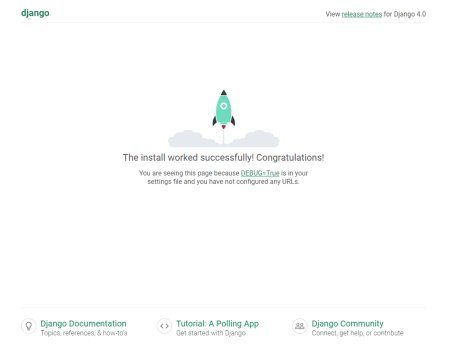
However, if you enter the following URL: `http://0.0.0.0:8000/`, the Django welcome page will not appear. Please change it to `http://127.0.0.1:8000/` or `http://localhost:8000/`.
After doing so, you should see a screen that looks like this:
7. Make the manage.py is available
Okay, so you've confirmed Django is working. Now, you'll need to use those handy manage.py commands to do things like migrations and create a superuser.
But here's the catch: if you're using Docker, running these commands directly from your local command line won't work.
You need to get inside the Docker container first. Here's how:
If you see a # on the command line, that means you have succeeded.
This step is also where it is easy to run into issues when building a Django environment using Docker.
Furthermore, this article will not cover database migration or createsuperuser, as these topics are already well-covered in other Django tutorials.
docker-compose exec backend bash
8. Adding template, static folder, and STATICFILES_DIRS
We've now completed the minimal setup for our Django project. However, there's still more to do before we can add an application.
Let's create a very simple application that just displays "hello world" in a template.
Here are the steps we'll follow:
- 8-1. Create a new application in the project.
- 8-2. Create a template folder in the root directory and add a template such as `base.html`.
- 8-3. Create a static folder in the root directory to add CSS and js files.
Let's dive into the details of each step.
8-1. Creating a New Application in the Project
To create a new application, follow these steps:
- Enter Docker using the commands introduced in section 7.
- Type the following command:
python manage.py startapp app
This will add an application named `app`. The file structure after executing the command will look like this:
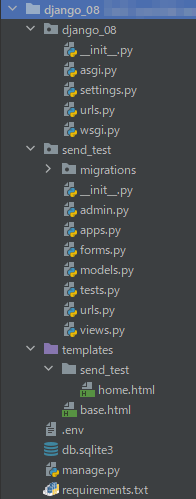
8-2. Create a template folder in the root directory and add a base.html template and a home.html template
After creating the application, the next step is to add it to the Django project.
In settings.py, add this application as accompanying code.
For reference, if the app name were "blogging", this part would be as follows.
'blogging.apps.BloggingConfig'
INSTALLED_APPS = [
    'django.contrib.admin',
    'django.contrib.auth',
    'django.contrib.contenttypes',
    'django.contrib.sessions',
    'django.contrib.messages',
    'django.contrib.staticfiles',
    'app.apps.AppConfig' #add
]
Once you have reached this point, create a templates folder. Inside the templates folder, create a base.html file and an app folder.
Inside the app folder, create a home.html file. Note that the name of the app folder depends on the name of the application created in the project.
Specifically, the structure inside the templates folder should look like this:
templates/
├── base.html
└── app/
    └── home.html
8-3. Create a static folder in the root directory and add CSS and JavaScript files.
Next, create a static folder in the project's root directory. Inside the static folder, create a css folder and a js folder. Inside these folders, create empty custom-style.css and custom.js files.
To reflect the code written in CSS or JS in the template, you need to add STATICFILES_DIRS to settings.py. Add the following code under STATIC_URL = '/static/' in settings.py:
STATICFILES_DIRS = [
    os.path.join(BASE_DIR, "static"),
]
9. Add minimal code to urls.py and views.py to display hello world.
Next, let's create urls.py and views.py.
As previously mentioned, we will now write the minimum amount of code to display "hello world" in the browser.
First, add the following code to urls.py located in the project folder.
urls.py(project folder)
from django.contrib import admin
from django.urls import path, include

urlpatterns = [
    path('admin/', admin.site.urls),
    path('', include('app.urls', namespace='app')),
]
Next, let's write the view. In this case, we will use TemplateView because we believe it provides a more straightforward, minimal setup.
views.py
from django.views.generic import TemplateView

class HomeView(TemplateView):
    template_name = "app/home.html"
Next, create a urls.py file in the app folder and include the accompanying code:
app/urls.py
from django.urls import path
from app import views

app_name = "app"

urlpatterns = [
    path('', views.HomeView.as_view(), name="home"),
]
Now we're ready to add code to our templates. Following Django best practices, we'll keep base.html relatively minimal. It will primarily contain the {% block content %}{% endblock %} template tag.
The actual content will go in home.html.
We also need to include the CSS and JavaScript files we configured earlier within base.html. Create base.html and home.html as follows:
base.html
{% load static %}
<!doctype html>
<html lang="en">
<head>
    <meta charset="UTF-8">
    <meta name="viewport"
          content="width=device-width, user-scalable=no, initial-scale=1.0, maximum-scale=1.0, minimum-scale=1.0">
    <meta http-equiv="X-UA-Compatible" content="ie=edge">
    <link rel="stylesheet" href="{% static 'css/custom-style-base.css' %}">
    <title>Document</title>
</head>
<body>
    {% block content %}
    {% endblock %}

    <script src="{% static 'js/custom.js' %}"></script>
</body>
</html>
home.html
{% extends 'base.html' %}

{% block content %}
    <h1>Hello world!</h1>
{% endblock %}
The following message should now appear in your browser:
Congratulations! You have completed a basic Django setup. We can now use this setup as a base from which to experiment with different applications.

Avoid Using the Same Port
In this final section, I'll discuss a common problem that arises when building a development environment with Docker. If the local port conflicts with the port used by another Docker container, the container will not start properly.
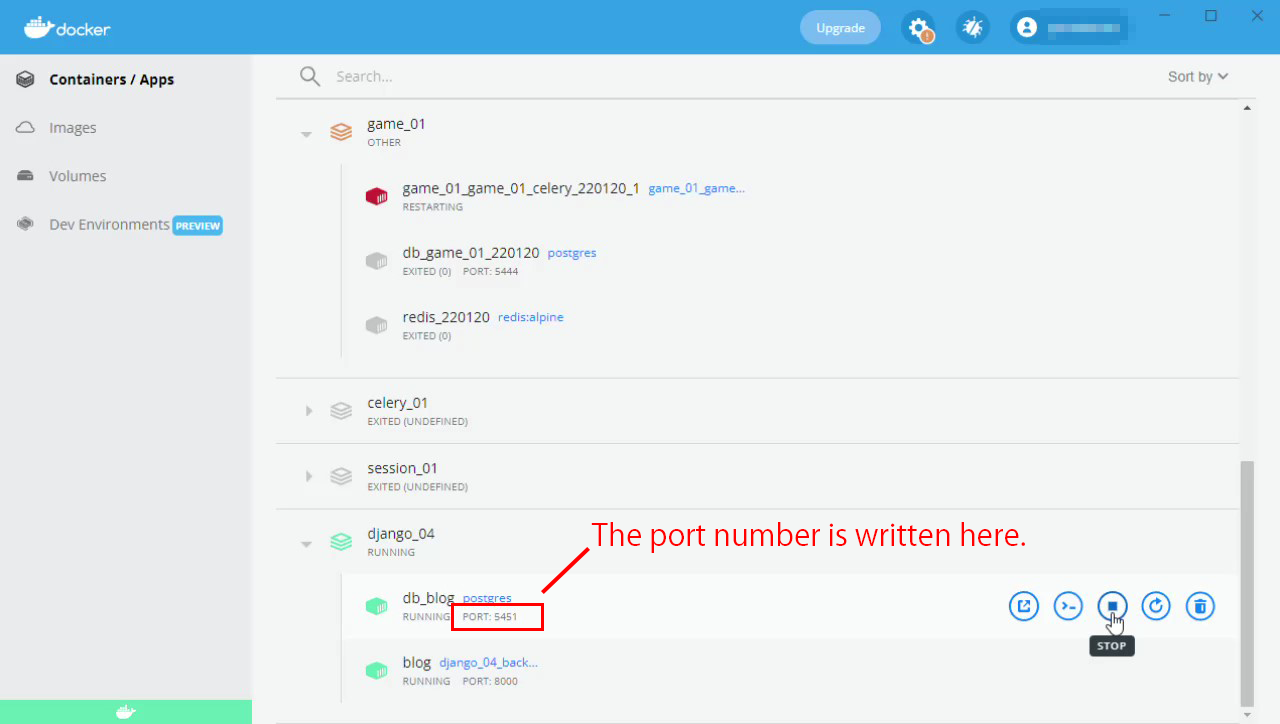
To avoid this issue, you need to set a non-overlapping port number or stop the container with the overlapping port. You can stop the container using the command line, but this method has been described in many other articles on the web. Since I am using Windows 11 as my local OS, I will show you how to stop it from the Docker desktop in Windows 11.
You can see the port number written in the app section of each container after launching Docker for Windows and selecting containers/Apps, as shown in the image below. If any container uses the same port as the one specified in the docker-compose.yaml file, stop it by selecting the stop button from the menu on the right.
That concludes this basic setup guide. You can use it as a foundation for future articles here and for quickly spinning up development environments in everyday app work. Feel free to adapt it in your own projects.
Lastly, the GitHub repository for this project can be found here.